

Account Manager Guide
Access and Save Tickets via a Mobile Device
IMPORTANT INFORMATION
On a computer, you can accept and transfer tickets using the Rocket Classic Account manager website.
YOUR TICKETS ARE MOBILE ENABLED, meaning that your tickets will only generate barcodes on a mobile device (Rocket Classic Account MAnager site on a web browser, or PGA TOUR mobile app.)
These tickets cannot be printed.
1
Check your email for the transfer offer. It will come from Rocket Classic - noreply@ticketmaster.com. Once you locate it, click on the 'Accept Tickets' button in the email.


If you are having trouble finding the email, search your junk folder, or search all your inboxes for an email from Rocket Classic.
If you DID NOT receive the transfer email, visit https://am.ticketmaster.com/pgarocket/myevents. You will the be directed to a page that looks like Step 2. Sign in or create an account. (see step 2) Once you are signed in, you will see a box with the transfer offer. Click 'Accept.


2
Sign in using the email address and password that was used when purchasing the tickets.

If this is your first time using Rocket Classic Account Manager and you do not have a Ticketmaster account, click 'New to Ticketmaster? Sign Up' near the top of the page. Follow the prompts to create an account.
If you do not remember your password from previous years, click on 'Forgot Password' button to reset it.
If you receive a message that says, 'It looks like you already have an account,' please login with that email address and your password (or follow the steps to reset the password, if needed).

3
Once your account is created or you signed in wiht you existing account, you will see a pop up that says you have accepted the ticket(s). You can now manage your tickets in your account. Please note, you will not see mobile barcodes on a desktop.


Continue on a mobile Device.
4
Here you will see all the events you have, separated out by day. Find the event you are attending and click 'View Event Details.'
5
Select the ticket that you wish to pull up to show the rotating barcode or add to your phone's mobile wallet.


6
This is your ticket! You are ready to scan the rotating barcode at the tournament entrance for admission. If you have multiple tickets, swipe side to side to access all your ticket barcodes.
If you have a hospitality ticket, you will also be asked to present your ticket barcode(s) to be scanned for admission into the hospitality venue (ex: LendingTree Lounge and Club Ace).
If you want to save your ticket to your phone's mobile wallet, see instructions in Step 9.
TIP: We recommend that you click "Add to Apple Wallet" for iOS devices or "Save to Phone" for Android devices prior to arrival at the tournament for quicker access.

7
Click the 'Add to Apple Wallet' button for iOS devices, or 'Save to Phone' for Android devices.
8
Click 'Add' in the top right corner.
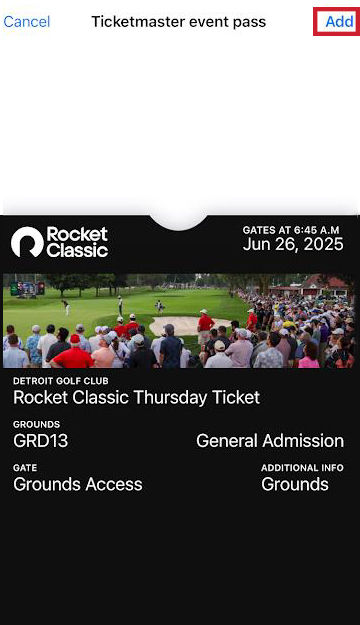

You might have to repeat this step for each ticket you wish to add to the wallet. Double check your phone's wallet to make sure all the tickets are there!
9
Your ticket will then appear in your wallet. Please note there is no barcode, it scans the ticket via NFC chip in your phone. Once you have arrived at the tournament, go to your phone's wallet to access your saved tickets.
For all tickets to be saved to your phone's wallet, you may need to do this for each ticket you have. Double check your phone's wallet to make sure all the tickets are there!
